

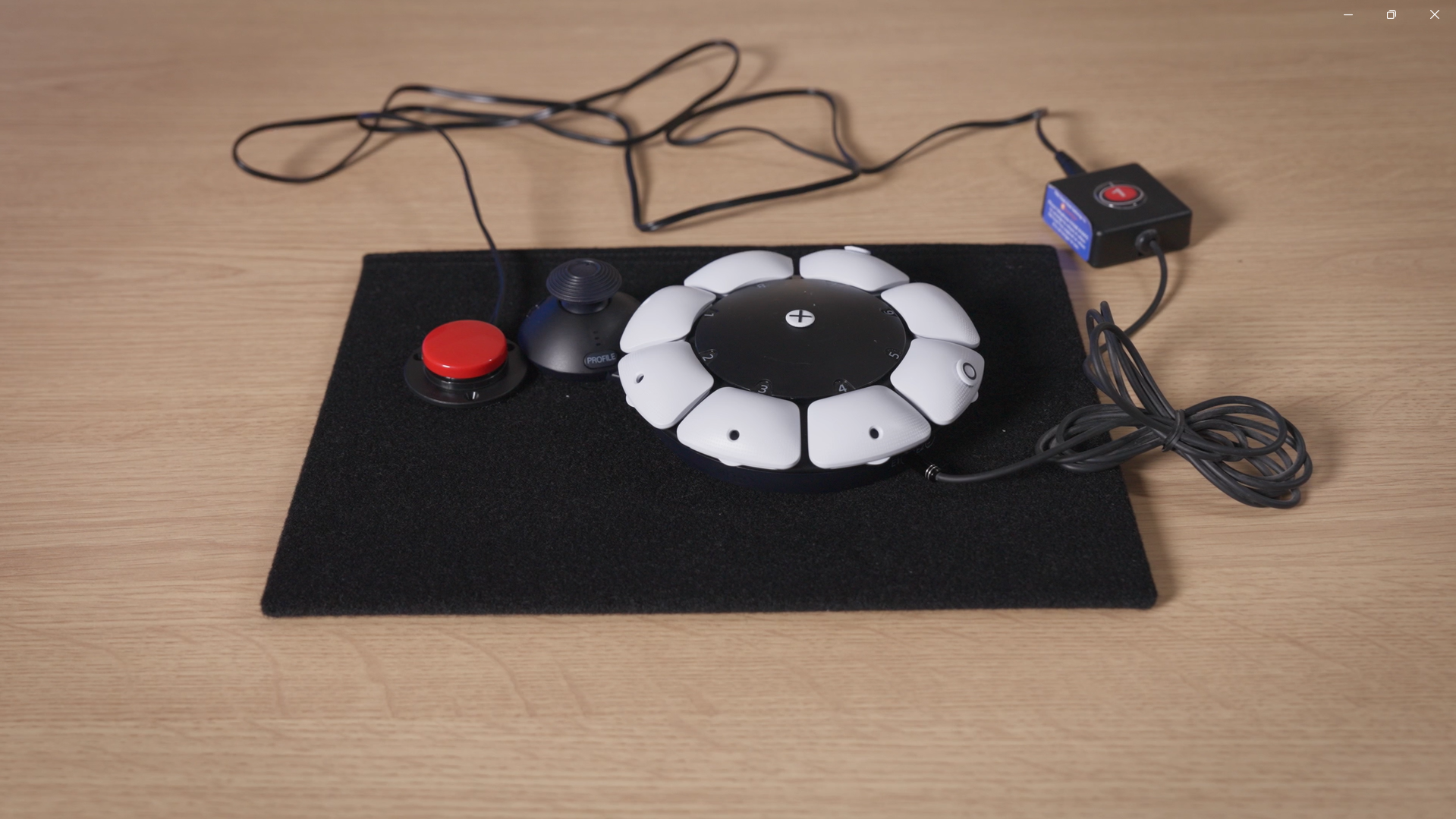
The Walk Box (SAC) allows you to replace a second joystick with an accessibility switch when using the Access controller on PlayStation 5.
The box sits between your accessibility switch and your Access controller allowing you to use a switch press for the ‘Up’ direction on a joystick. Usually, for a game that requires two joysticks to play, you would use one stick for movement and one to move the camera, to look or aim.

To set it up, you connect the Walk Box and connected switch into a port on the Access controller. On the PlayStation 5 console, you would then map this port to Left Stick, for instance. You can then still use one joystick as Right Stick to look around and aim. But, instead of a second joystick, your character will move forward in the direction you are facing when you press a switch. At SpecialEffect we call this a ‘walk-forward button’.
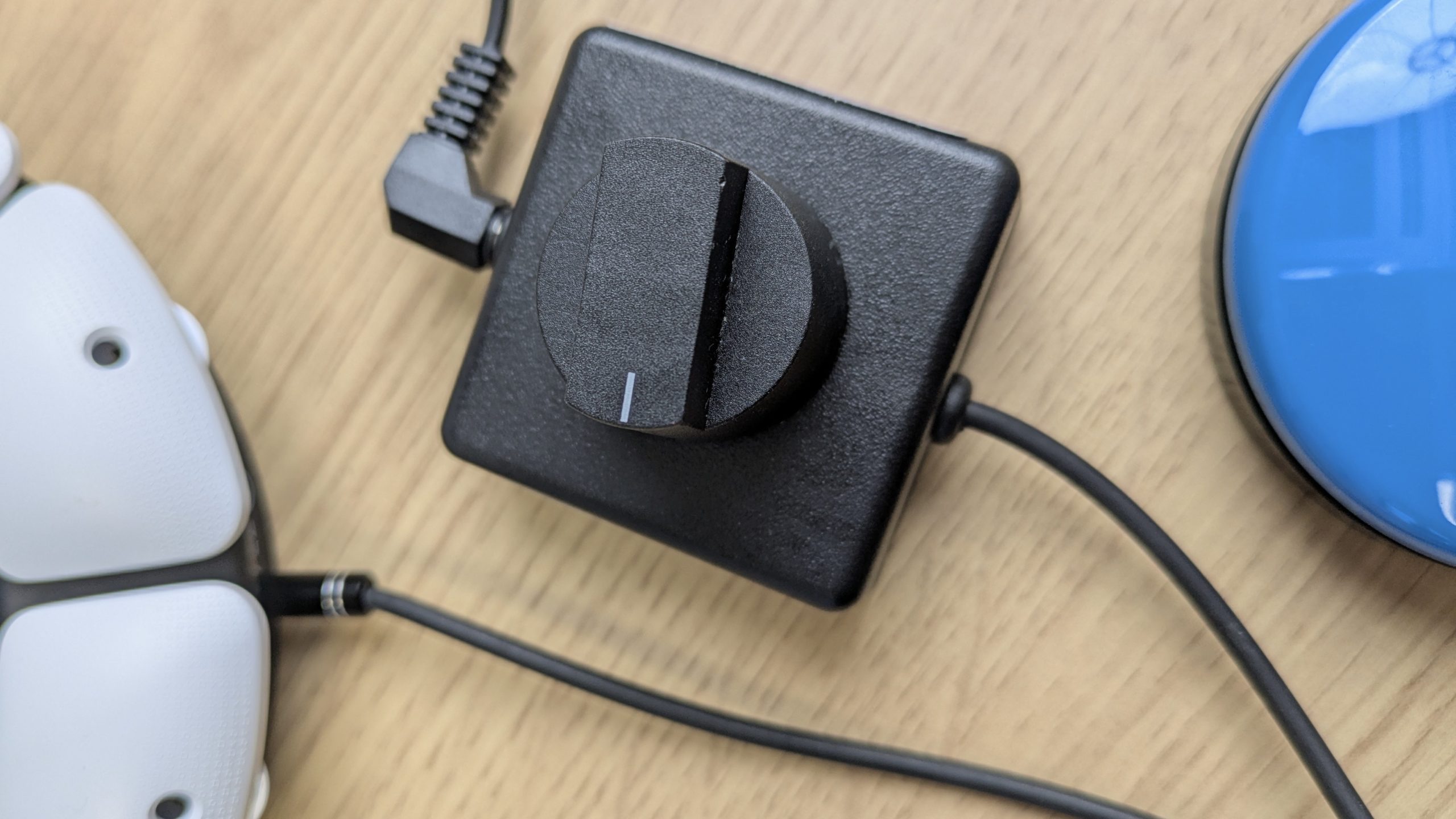
An optional speed dial upgrade (photo below) can be added when ordering. This lets you walk at slower speeds. Without the upgrade, you may need to crouch when walking if you want to slow your character down in-game.
Tips
- A walk-forward button may not be suitable for all games. First-person titles are compatible when movement is on foot and when left, right or backward movement are not essential to gameplay. This may also be dependent on how you play them tactically. For instance, you may prefer not to use aircraft in an online multiplayer that require all directions on both sticks to fly them, whilst for another player, this is an essential part of the game.
- A walk-forward button may also be compatible with certain third-person titles in the same way as first-person titles. In third-person games, left, right and downwards movement may be needed in certain contexts, such as climbing, for instance.
- Some players may primarily use a walk-forward button, but have access to a second stick for occasions where this is needed. For instance, for climbing backwards down a ladder or for controlling a vehicle you have entered.
- If using a single joystick with a walk-forward button, you may benefit from using your joystick as the Left Stick instead of Right Stick. Using it as Left Stick allows you to navigate up, down, left and right in menus, for instance. This will mean that you will need to swap sticks in your game, so the left joystick is used for looking and aiming, instead of for movement. This layout is often referred to as ‘southpaw’ or ‘lefty’. You would then set up your walk box to be up on the Right Stick, by mapping the port you are connected to on your Access controller to be Right Stick.
- Alternatives to using a walk-forward button may include using in-game settings, such as single-stick modes. Alternatively, additional hardware could be used to create a ‘swap stick’ button. Another option may be finding an alternative second accessible joystick, perhaps used with another part of the body.
Further Information
For more information on the Walk Box, please visit the OneSwitch website. For additional or alternative controller hardware, please see our ‘equipment‘ category. For information on in-game features that may help make them more accessible, please use our ‘accessibility feature‘ tag.
*Update Feb 16th 2026 – We have added a video to gameaccess.info featuring the Walk Box (SAC) and ‘How to Set-Up a Walk Forward Button‘. The video also shows other equipment we use to create a walk forward button on PlayStation 5 and other consoles.
Image Credit: The two middle images are screenshots taken from video footage by Tom Williams for SpecialEffect.